Vocabulary for special ed students can at times present a real problem as their approach to spelling and life is generally speaking outside of the norm.
Recently I heard about
Dynamic Literacy and was a little intrigued to learn a little more about their approach to learning.
Their method is based on Latin and Greek roots. It is structured around learning three root words. From here you then learn three suffixes and now you know 12 words and then you learn three prefixes and once you combine them all you will end up with 48 new words on your list (
see a sample here) by simply starting with nine words!
Their process is geared towards exponential learning. Needless to say I really wanted Nathaniel to try
WordBuildOnline.
What we received
How we used it
One of the things I appreciate about WordBuild online is that there is only
one log in page. You access all your accounts from this one location. From here we either log in as the student or as the parent.
When you choose Student from the drop down menu in Type a secondary box appears where you type in your Group ID number. This is unique to your homeschool. If you forget it you can look it up in their group ID area which is a very handy feature.
After typing in the Group ID number a new box appears with a list of students associated with that ID number. You then select your name and input your Password.
In order to successfully use WordBuild Online your student will need to know how to read.
WordBuild Online - Foundations 1
This is the level Nathaniel has been working on. It is aimed at students in 2nd to 4th grade and can also be used by older students needing remedial catch up. This level teaches the most commonly used prefixes and suffixes.
When you log in Lexi greets you. He is your host and walks the students through each days lessons. We've grown quite fond of him. He starts the week off with a video lesson.
Day 1 - Click on Let's Go takes you to your dashboard page where you can choose to either start your lesson which begins with a short video lesson. After the lesson the student then does a prefix square activity. This activity is a timed activity. There is a count down timer on the top right of the screen. Upon completion Lexi gives you a summary of your progress and tells you how many you got correct and in what amount of time this was accomplished.
Day 2 - Lexi shows the prefix or the suffix the student is working on. They click on the suffix and add it to the word. Then they need to fill in a definition.
The third part of practice is using the new word in context by selecting the correct sentence.
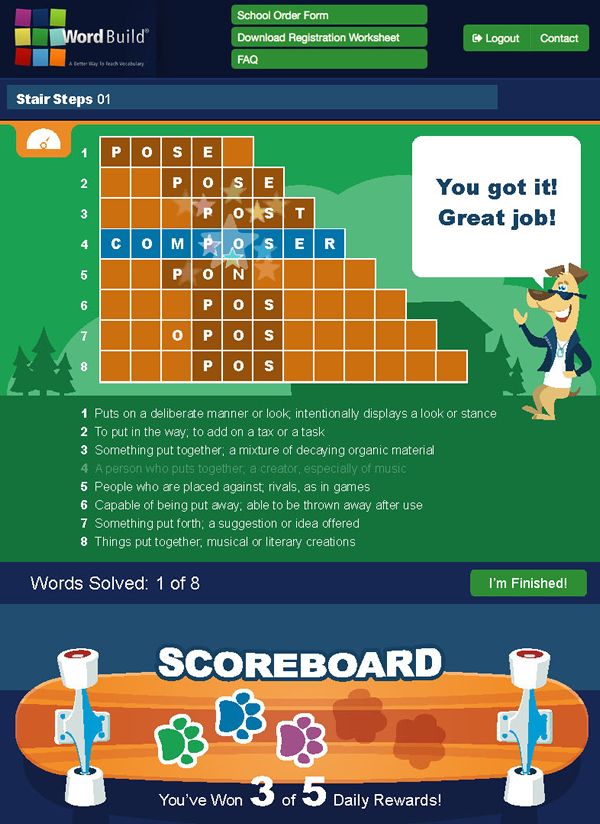
Day 3 - Magic Square time. The student needs to match up the words in the squares with the definitions in the column on the right.
Day 4 - Read the sentence and select the correct word to fill in the blank.
Day 5 - The student completes a multiple choice test to evaluate their progress.
At the bottom of the screen is a skateboard with doggy footprints which tracks your progress through the week. This visual feed back has kept Nathaniel on task and the immediate feed back of a paw print changing colour upon completing a task has kept him encouraged too.
WordBuild Online - Elements 1
Elements is the sequel level after you have completed level one and two of foundations or for students in sixth grade or higher. This level teaches Latin and Greek roots. I have been working on this level and have found it a little bit of a challenge. I was actually surprised at how difficult it was to complete the very first level.
Day 1 - Uses the same square as Foundations day one but it includes suffix's and
prefix's and then challenges you to create as many words as you can
using the morphemes provided to add to the word form.
 |
| Day 2 - Magic Square Challenge |
Day 2 - Used the Magic Square and gave me nine definitions to marry with the correct words. I was given 15 minutes to complete the square. It was a steep challenge as some of the definitions were so similar I struggled to marry them up to the words.
Day 3 - uses a crossword challenge to reinforce the words you are learning.
Day 4 - Follows the same as foundations with a word power activity. It was a little more complex as I had to read something from Lexi and then use the clues to choose the correct word to complete the sentences.
Day 5 - Is a ten word choose the correct word test.
Here is
a video overview of how the program works and the why behind the process.
WordBuild for Parents from Jerry Bailey on Vimeo.
For the Parent
The parent Dashboard gives you access to manage your students and see at a glance the assigned levels that each student is working on.
At the bottom of the screen there are five options available:
- Manage Groups - here you will see your Group ID, name, students etc
- Manage Students - brings up a list of students with a progress report and the assigned levels
- Manage Notifications - here you can add in an email address to which a notification is sent each time a student completes an assignment. The email you receive simply has the students name and the activity code.
- Edit your profile - this is where you will find the user id, password, names and email address.
- View Videos - these are for you the parent to see what your children are learning. They are the same video's that your children are watching and are laid out in levels and lessons.
In the Manage Students section you are able to view progress reports.
 |
| Student Progress Report |
In the report you are able to see a comprehensive break down of your students activity using WordBuild Online. You are able to have a look at how the student answered their questions by clicking on the review section. Correct answers show in green, incorrect in red. You can see at a glance the allotted time allowed for an activity and the actual amount of time the student used. This report also shows you the average score of your student so far. This is the same in the Foundations and Elements programs.
Cost of WordBuild Online
- WordBuild: Foundations, Level 1 - $30
- WordBuild: Foundations, Level 2 - $30
- WordBuild: Elements, Level 1 - $30
- WordBuild: Elements, Level 2 - $30
Recommended Age Range
- Foundations: 2rd-5th grades (or 5th-9th for remedial work)
- Elements: 6th-10th grades (or 7th-12th for remedial work)
- WordBuildOnline: Same as the physical books.
Read more about each level on the
Word Build Online website.
Connect with Dynamic Literacy



 Over All I thought ...
I have enjoyed the challenge to my vocabulary using
Elements Level one and it is a definite twaddle free environment built in a game which provides immediate feedback. If I want to find out the correct answers I can log into the review area for a full write up on what the answers need to be and compare what I did with what I should have done.
Foundations has been a good fit for Nathaniel and is broadening his vocabulary. Using the
same format each week means that there is no stress as he knows what to expect. One of the things that children with ASD struggle with is change they are secure with routine and
WordBuild Online provides stability in it's approach in that the method remains the same each week.
ASD children also need things broken down for them in step by step process.
WordBuild Online does this in a concise and easy to understand method, and
explains the why behind each part of the word. For example: why we use "ed" instead of "t" at the end of a word.
WordBuild focuses on the
meaning of the suffix or prefix it is teaching thereby equipping your student with the tools they need to build vocabulary.
On the days when the activity requires typing in a definition I lend a hand. He dictates and I type. Each days lesson is a timed activity which means that the maximum time he can use is 15 minutes. On average he has completed the lessons in under ten minutes which means it has used minimal time of our day. The short lesson also means that Nathaniel can not become distracted.
I am really impressed with this method of expanding your children's vocabulary. The approach is twaddle free and uses Latin and Greek roots thereby enlarging your students understanding of the world around them too. The short 15 minute lessons fit in with the
Charlotte Mason method of short lessons.
Blessings
Chareen